

How to Tell If Google's Spam Update Hit Your Site
Check whether your traffic drop fits Google's September 2026 spam update, rule out other causes, and track fixes and recovery in SEO Logbook.
Diagnostic Guide
How to Tell If Google's Spam Update Hit Your Site
A traffic drop during a spam update deserves investigation. The timing alone cannot tell you whether Google's spam systems affected your site.
Start with the dates, identify the pages losing traffic, and check for technical problems and actual policy violations before changing the site.
Check the update dates
Google's September 2026 spam update ran from September 24 to October 8, globally and across all languages. Those are Google's US/Pacific rollout dates.
Find the first sustained decline in Search Console. A fall during that window makes the update worth investigating. A decline that began earlier needs an explanation for that earlier date too.
Find where the clicks disappeared
In Search Console → Performance → Search results, compare periods and open the Pages tab. Sort by clicks difference to find the URLs responsible for the largest losses. Google's traffic-drop guide recommends checking whether the decline affects the whole site or a smaller group of pages.
For a clean before-and-after view, use a baseline ending before September 24 and an after-period starting October 9. Match the length, weekdays, search type, country, and device. Use complete data; Google's newest performance data can still be preliminary. If a full comparable after-period is not available, label the finding provisional.
Read the metrics together:
| What you see | What to investigate next |
|---|---|
| Clicks and impressions fall, with worse average position | Ranking loss, indexing problems, and changes to the affected pages |
| Clicks fall while impressions and position broadly hold | Lower CTR: inspect titles, snippets, and the current search results |
| Impressions fall while position broadly holds | Changes in demand, seasonality, and the mix of searches reaching the page |
| Only one section or page type declines | Its shared template, content practices, redirects, and indexing settings |
These are investigation paths, not verdicts. Google's position metric is an average, so a stable site average can hide losses on individual pages.
Rule out changes on your own website
Check affected URLs for server errors, accidental noindex, incorrect canonicals, redirects, and missing content. Review Page indexing and inspect representative URLs in Search Console. Compare the decline with your releases and recorded changes.
In SEO Logbook, open Monitor history → View evidence for an affected page, then check its URL history and linked tasks. A recorded technical problem gives you something specific to investigate before attributing the loss to Google.
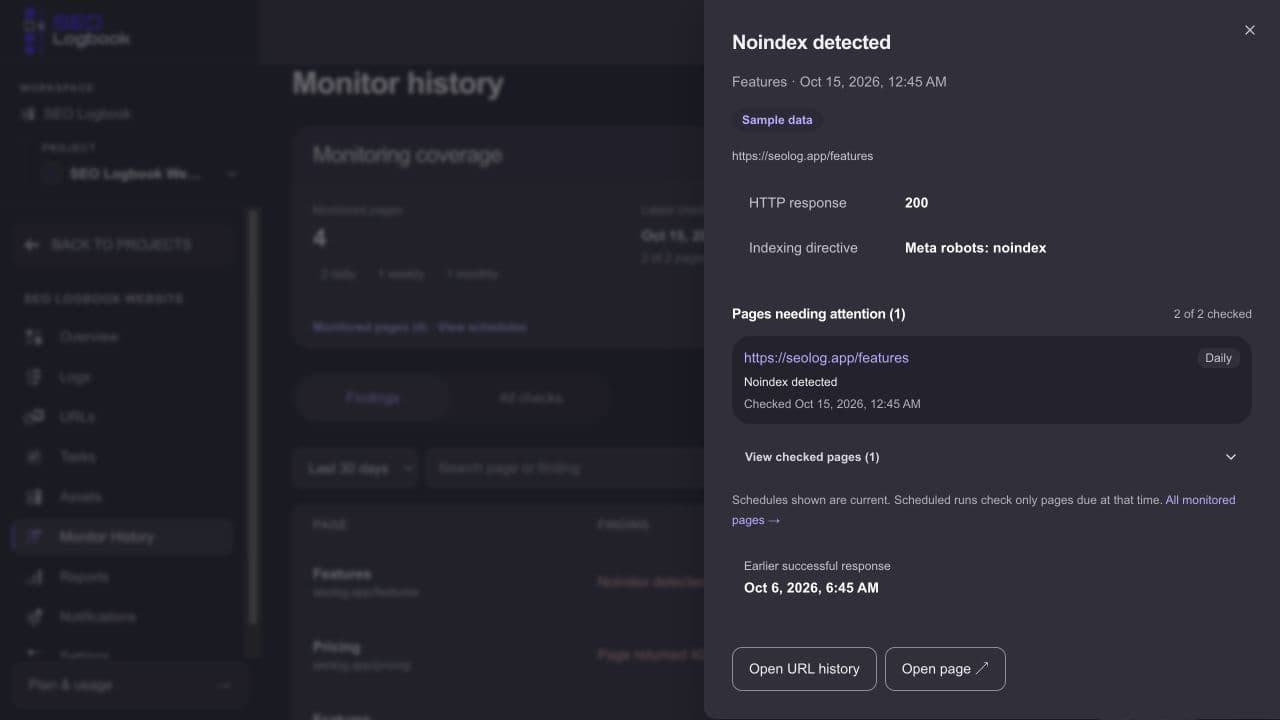
Sample project. A page can return HTTP 200 while carrying a noindex directive. This is technical evidence to investigate, not a spam-update diagnosis.
Also check seasonal demand and Google's reported data anomalies before treating a chart change as a ranking problem.
Look for evidence of a spam problem
Open Search Console's Manual actions and Security issues reports. A manual action confirms the specific issue described there. An empty report does not rule out an automated ranking impact.
Review the affected pages against Google's spam policies. Look for practices such as pages produced at scale mainly to manipulate rankings, copied content without added value, doorway pages, cloaking, hacked content, or manipulative links. Check the wider pattern wherever the same practice appears.
An update impact becomes more plausible when the timing, affected pages, and policy evidence align after other explanations have been checked. Search Console does not provide a definitive automated-spam-impact label.
Fix the issue and keep a recovery record
Correct the specific violation or technical fault you found. Avoid rewriting or deleting pages solely because their clicks fell. For a manual action, fix the documented issues and follow Google's reconsideration process; security issues have their own review process.
Use SEO Logbook to keep the follow-through clear:
- Assign the fix to an owner and link the affected URLs.
- Record what changed and the actual implementation date, then verify the live result.
- Enable monitoring on important pages to catch further unexpected changes. Check the latest run date so you know the evidence is current.
- Connect GSC in project settings, start a Search Console comparison around the fix, and review complete follow-up periods.
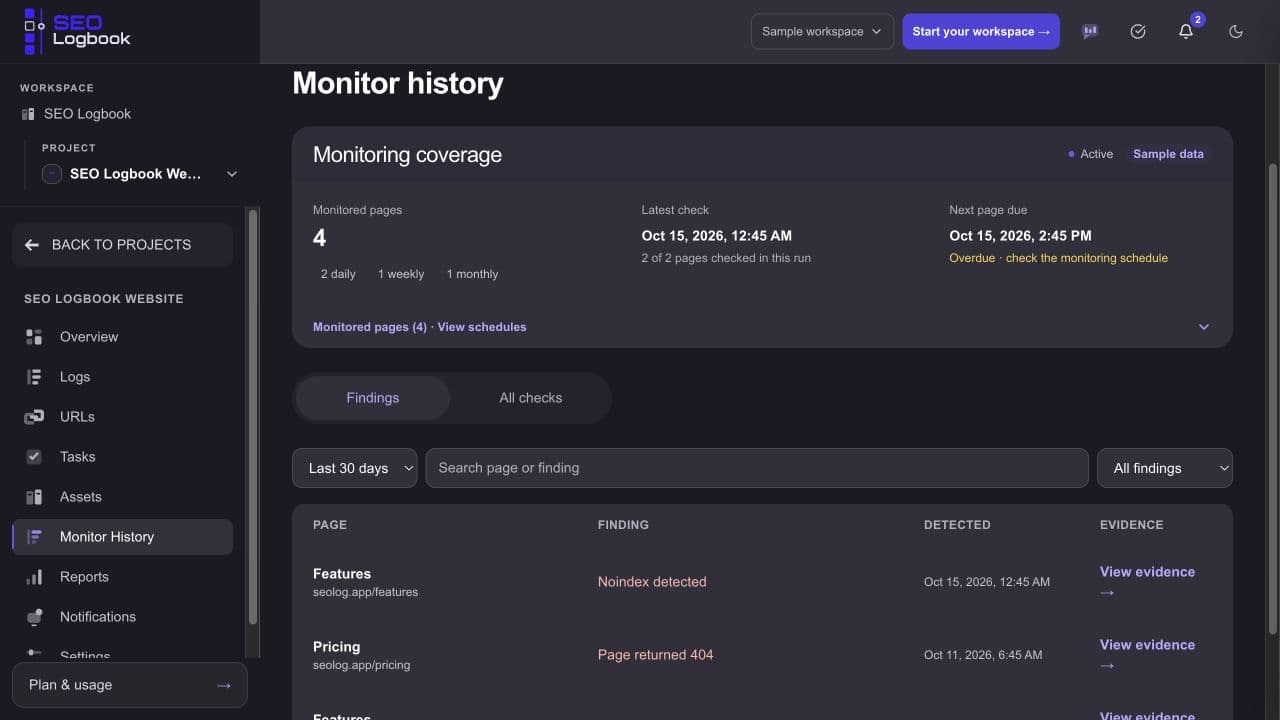
Sample project. Monitoring checks the page's technical signals; Search Console comparisons track search performance. Neither confirms that a spam classification has been removed.
Google says improvement after a spam update may take months as its systems reassess compliance. Where a link spam update removes ranking benefits from spammy links, those benefits cannot be regained. A short rise in clicks is a reason to keep watching, not proof of recovery.
Explore SEO Logbook's demo to see how page history, tasks, monitoring, and Search Console comparisons stay together while you investigate and follow up.