

How to Connect Google Search Console to ChatGPT or Codex
Connect GSC to ChatGPT or Codex for search analysis, then see how SEO Logbook keeps the changes, comparisons, owners, and reports together.
Integration Guide
How to Connect Google Search Console to ChatGPT or Codex
You can give ChatGPT or Codex access to Google Search Console data through an export, a connected service, or an API integration. Once connected, you can ask which pages lost clicks, where impressions increased, or how mobile search compares with desktop.
The next question usually needs more context: what did your team change on those pages, who approved it, and what should happen next?
That is where SEO Logbook helps. It keeps Search Console comparisons with the URL's tasks and change history, so a search result has a record your team can return to.
TL;DR
- Upload a GSC export for a single analysis. The file stays a snapshot until you replace it.
- Use a trusted MCP connection when ChatGPT or Codex needs to retrieve data on demand.
- Start with one property, a defined reporting period, and read access for analysis.
- Check the dates, filters, totals, and data coverage before acting on an AI answer.
- Use SEO Logbook to connect the search comparison to the work, decision, owner, and report.
- SEO Logbook's public demo includes prepared SEO Assistant examples. As of October 12, 2026, live assistant activation is pending; the assistant is included in Team plans and above when activated.
Choose the connection that fits the job
| Your job | A suitable route | What you need to maintain |
|---|---|---|
| Answer a question about an existing report | Export GSC data and attach it to ChatGPT | The export, reporting dates, and filters |
| Ask recurring questions across search data and other sources | A connected service with MCP tools | Account access, source selection, and the service's limits |
| Build a repeatable analysis or custom report | Codex with an MCP server or Search Console API integration | Authentication, data checks, scripts, and any schedule you create |
| Keep SEO delivery and search results together | SEO Logbook's GSC integration | Saved URLs, accurate change records, and the next review |
SEO Logbook connects GSC inside its own workspace. This guide does not describe an SEO Logbook connector for ChatGPT or Codex. You can use an external AI connection for broader analysis and SEO Logbook for the ongoing project record.
Use an export for your first ChatGPT analysis
If you want to investigate one period, start with the data you already have:
- Open the site's Search Console Performance report.
- Set the dates, search type, and any page, country, or device filters.
- Export the report and attach the relevant CSV or spreadsheet to ChatGPT.
- Include the property name and filters in your request. State which file or table contains pages, queries, or daily totals.
Google documents the report export controls, and ChatGPT supports working with uploaded files and data exports.
Try a request with a clear boundary:
Compare the two complete periods in these page exports. Show the ten URLs with the largest absolute click losses, with clicks and impressions before and after. Check that the periods and filters match. Explain any missing data. Separate observed changes from possible explanations, and show the calculations.
This gets you a useful first answer without configuring a live connection. To analyse a later period, supply a new export. Attaching a CSV does not create a continuing Google connection.
Connect GSC to ChatGPT through MCP
MCP, or Model Context Protocol, lets an AI assistant call tools supplied by a connected service. For Search Console, that service handles the authorised request to Google and returns the data the assistant needs.
Providers such as Porter Metrics offer this route. Before choosing one, check whether it supports the exact GSC property, dimensions, and filters you need, and whether its account allowance covers your usage.
The setup has two connections:
- In the provider's account, authorise the Google account that can access your Search Console property and select the intended source.
- In ChatGPT, install the provider's available plugin or add its supported custom MCP server. Complete the provider's sign-in, then ask a small verification question.
For a custom server, OpenAI's current MCP connection instructions use Plugins → Add custom MCP server. Enter the provider's server URL, configure its supported authentication, create the plugin, and install it. Account and workspace policies can affect access.
Verify the property and dates before asking for recommendations. A correct total from the wrong website is still the wrong answer.
Connect GSC to Codex for repeatable work
Codex is useful when the output needs to become a reusable script, a checked calculation, or a report your team can run again. Composio offers a Search Console toolkit for this kind of connection; other providers can expose compatible MCP tools too.
For an HTTP MCP server, the CLI setup follows this pattern:
codex mcp add search-console --url "YOUR_PROVIDER_MCP_URL"
codex mcp login search-console
codex mcp list
Replace the placeholder with the URL supplied by your provider. The login command applies when the server supports OAuth; other servers may require their documented authentication configuration. OpenAI's Codex MCP documentation covers server settings and tool permissions.
If you build directly against Google's API, someone must maintain authorisation, property selection, pagination, and error handling. A script also needs a configured scheduler or automation if you want it to run regularly. Creating the script alone does not create the schedule.
Make the first question a connection check
Start with a request that makes an incorrect connection easy to spot:
Use only the connected Search Console tools. Confirm the exact property identifier before retrieving performance. For that property, compare the latest complete 28-day period with the preceding 28 days using Web search and identical filters. Show the exact dates, clicks, impressions, CTR, and average position. State the data freshness and whether any results are incomplete. Keep this analysis read only.
Open the same periods in GSC and check the answer. If totals differ, inspect the filters and aggregation before changing the prompt. Google's Search Analytics API supports a read-only authorisation scope for reporting.
Once this check passes, ask narrower questions: a particular URL, a mobile decline, or a group of queries. Narrow questions are easier to verify and easier to turn into useful work.
Keep the data limits visible
An AI connection inherits the source's limits. Google says the Search Analytics API does not guarantee every row; it returns the top results within Search Console's internal limits. Pagination helps retrieve available rows, but it does not recover every omitted query.
Dates and aggregation matter too. Google's explanation of Performance data describes preliminary recent data and the different counting rules for property and page totals. Do not compare a complete period with an unfinished one or expect every table to add up to the property chart.
Ask the assistant to calculate CTR from the matching click and impression totals rather than averaging row percentages. Use the source's correctly aggregated average position for the chosen scope. Keep country, device, search type, and page filters consistent between periods.
These checks belong in the saved report. The next person should be able to see what the comparison actually covers.
Give the analysis the work history it needs
Search Console can show that a page gained clicks after October 3. Its performance data does not tell you whether October 3 was the title update, a redirect release, or the day someone recorded an older change.
ChatGPT or Codex can use that context if you also supply the change log, task, approval, and implementation date. Without those records, a request such as “Did our update help?” leaves too much room for an explanation built around timing.
SEO Logbook gives that context a home. Each tracked URL can hold the work and its later comparison. The manager reviewing a result and the specialist investigating it can open the same page record.
Connect GSC once inside SEO Logbook
In your SEO Logbook project, open Settings → Search Console, connect the Google account with access to the site, choose the matching property, and sync the data. The help center explains the setup.
Add the URLs your team actually works on. Their search performance belongs beside their logs and tasks. Normal page views read the saved data; they do not make a new Google request each time you open a record.
This makes freshness an explicit part of the review. Check the data-through and sync dates before interpreting a recent movement.
Keep the before-and-after comparison with the change
When you record a change, enable its Search Console measurement. You can also start a comparison directly from a saved URL without creating a log or task.
Choose a 7, 14, 28, 60, or 90-day window. SEO Logbook waits for the after period and its data, then notifies you when the result is ready. The comparison keeps clicks, impressions, CTR, and average position with the page.
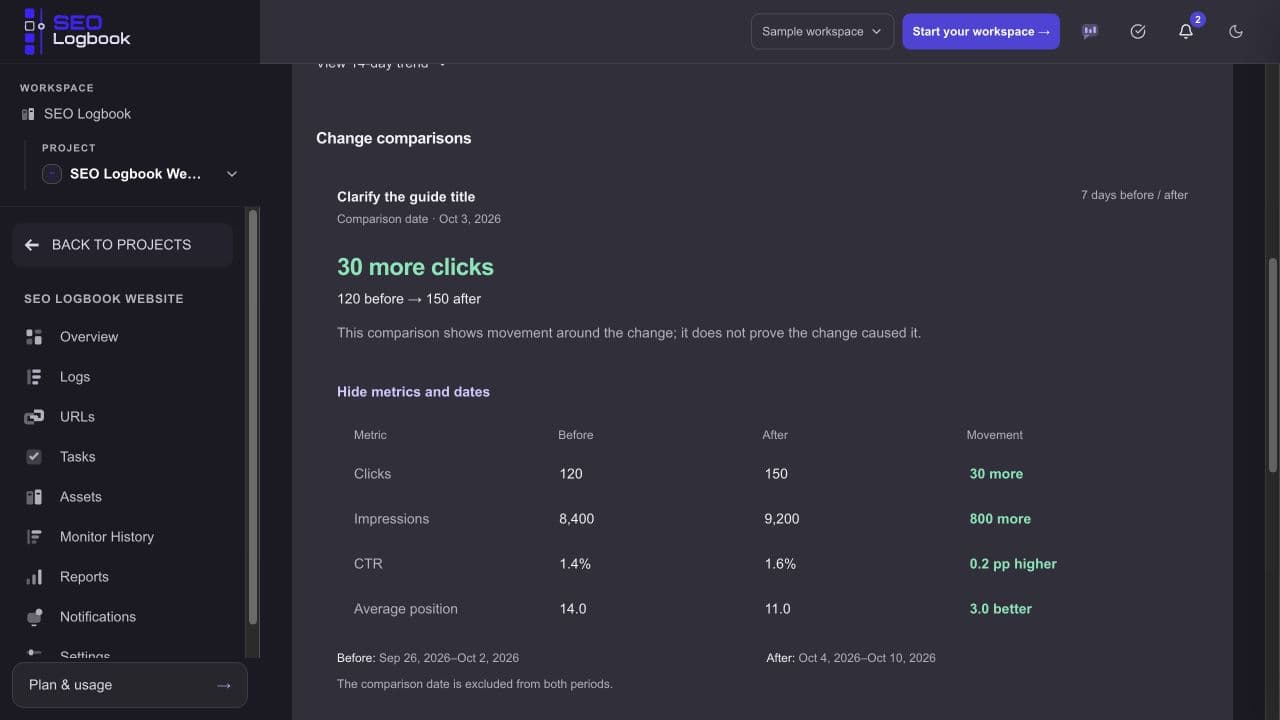
Public demo, sample data. This example compares September 26 to October 2 with October 4 to October 10 and excludes the October 3 change date.
The sample moves from 120 to 150 clicks. That is a recorded increase of 30 clicks. It gives the team a result to investigate alongside the title change; it does not establish that the title caused the increase.
Open the evidence behind the assistant's answer
SEO Logbook's demo includes an SEO Assistant example for “What did the comparison show?” It presents the saved comparison and a link to inspect the source record.
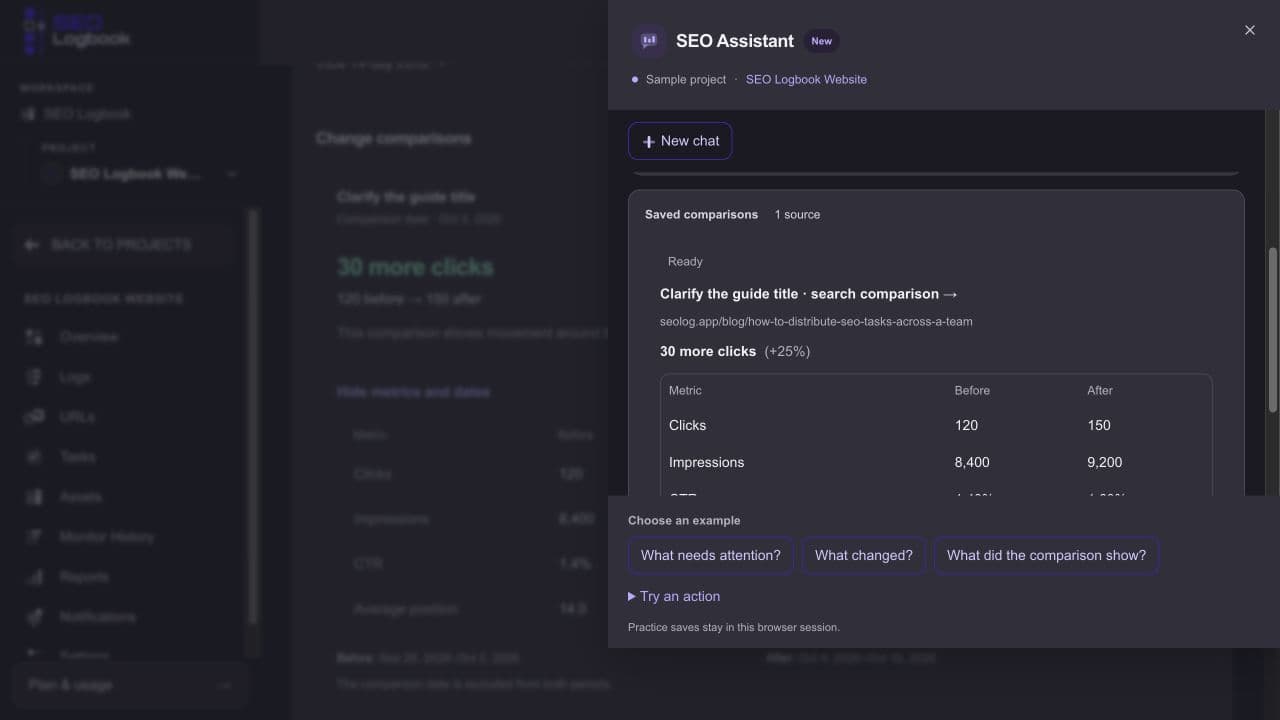
Prepared assistant example using sample project records. The source card links back to the comparison.
That is the advantage of keeping the work structured: the answer can point to the page, the recorded change, and the result instead of requiring someone to find the original spreadsheet and message thread.
The current plan information lists SEO Assistant on Team and above, with live activation pending. Upgrading does not activate live questions yet. The public demo lets you inspect the prepared workflow before choosing a plan.
Review a draft before it becomes a record
An assistant can help you describe a change, but the record still needs the right URL, wording, and date. “We should add internal links” and “We added internal links” describe different states of work.
The demo's log action opens a review form. You can inspect the description, select the saved page, choose whether to measure Search Console performance, and press Save log.
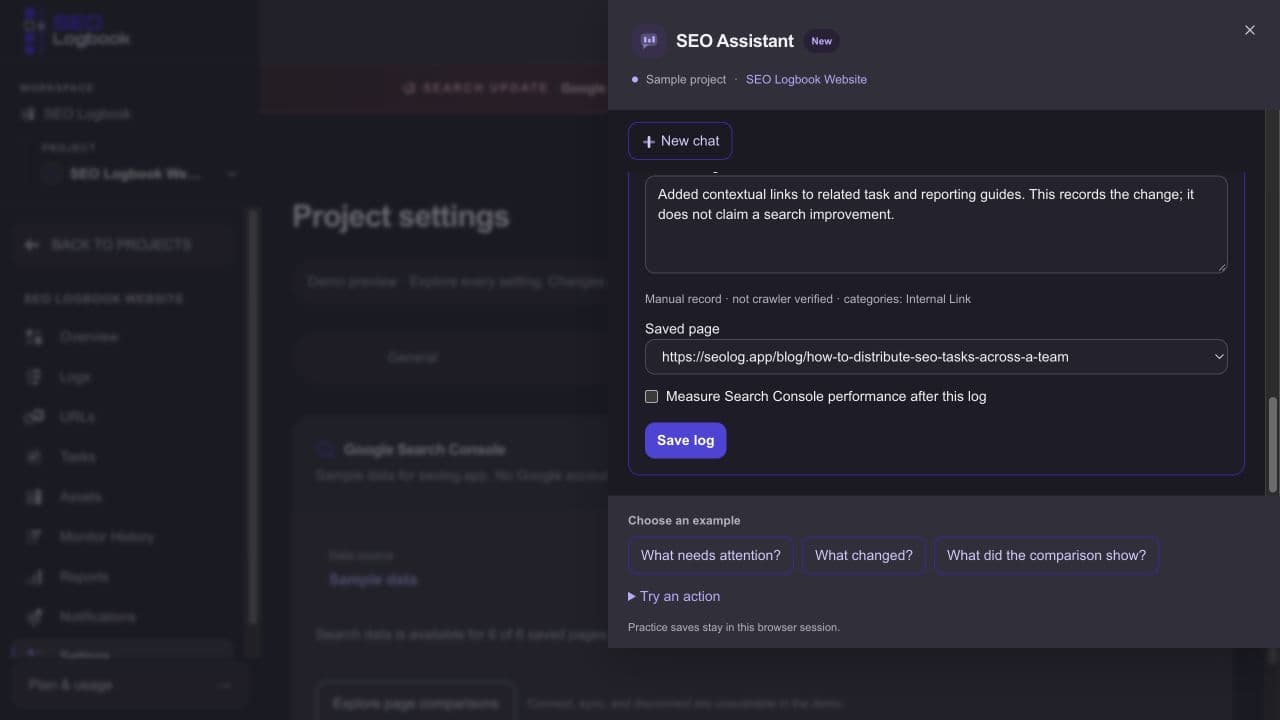
Prepared draft in the public demo. Practice saves stay in the browser session.
The form labels the draft as a manual record rather than crawler-verified evidence. Keep that distinction when reporting delivery: writing that something changed is separate from checking what reached the live page.
Carry the result into the team report
A performance table answers “What moved?” A team report also needs to explain what shipped, what is awaiting approval, who owns the follow-up, and when the next check is due.
SEO Logbook's reporting workflow builds on saved project work. The comparison can sit with the change and decision instead of becoming an isolated screenshot in a monthly deck. Review the report before sharing it with the client or manager.
The same record helps with handover. A new SEO can inspect the page history and unfinished tasks without relying on the previous specialist to reconstruct the project from memory. Available history depends on your workspace plan.
Ask questions that lead to a decision
These are useful requests for ChatGPT or Codex when the named data is connected or supplied. In SEO Logbook, use the available saved records and supported assistant workflows when live service is activated.
| Question | Evidence the answer needs |
|---|---|
| Which pages lost the most clicks across two complete periods? | GSC page data with matching dates and filters |
| What happened around the title update on this URL? | Change record, implementation date, and saved comparison |
| Which completed changes are ready for review? | Change dates and completed comparison windows |
| What changed unexpectedly on our important pages? | Monitoring records and the previous and latest checks |
| What is waiting on the client, and who follows up? | Approval status, task owner, and deadline |
| Draft an update showing delivered work and measured movement. | Verified work, decisions, comparisons, and open next actions |
If you ask why traffic fell, treat the answer as an investigation. Google's traffic-drop guidance covers technical issues, changes in demand, and search updates. A log and comparison help test an explanation; neither proves it by itself.
Start with one page you already changed
Choose a URL with a known update. Record what shipped and when, connect GSC, and select a comparison window. When the data is ready, review it alongside the task and decide the next action.
Use ChatGPT or Codex when you need a custom analysis across your sources. Use SEO Logbook to keep the page's work and results ready for the next review.
Explore the sample comparison in SEO Logbook, or start a free workspace to begin recording your work. Search Console comparisons are included on Solo and above; the SEO Assistant is planned for Team and above, subject to activation and workspace allowances.